
Renew - Old Photo Restoration
Olena DorohanPhotography
4.61.76K Reviews
- Version
- 1.1.22
- Installs
- 1.00M
- Age Rating
- Everyone
Screenshots
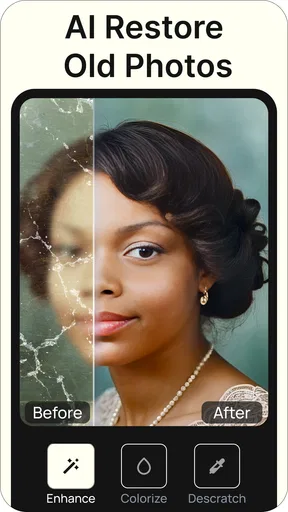
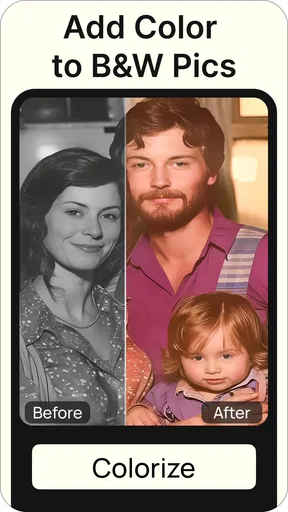
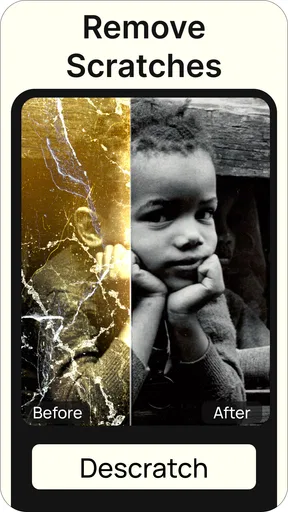
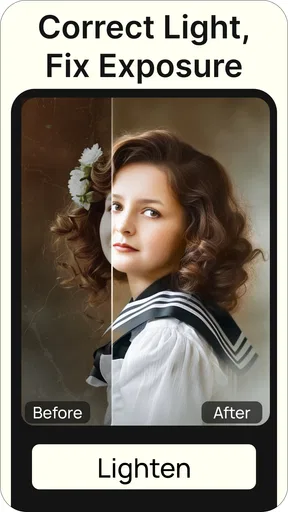
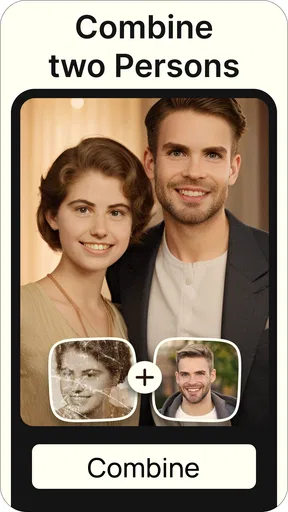
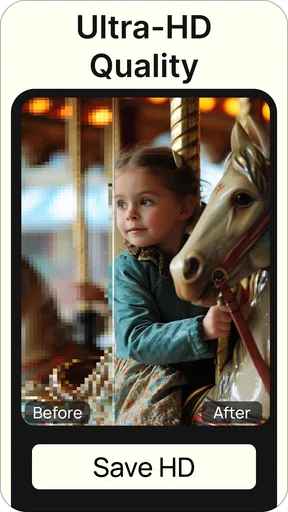
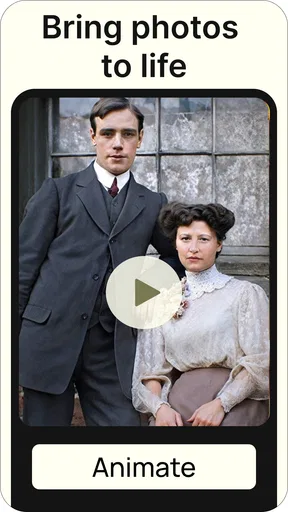
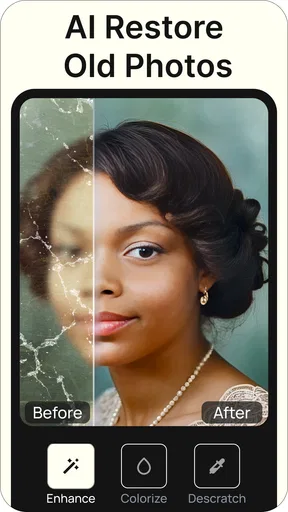
Our Review of Renew - Old Photo Restoration
 Analysis by Appyee
I find Renew - Old Photo Restoration most useful when I treat it as a starting point for revisiting family pictures, not as a way to make every damaged print look newly photographed. Its AI-led approach is aimed at restoring and colorizing old images, with tools for repair, combining pictures, and animation. That range makes it more ambitious than a basic filter app, but it also means the best results come from choosing one clear goal for each image and checking whether the change still feels faithful to the original.
Choose the right photo before you begin
A quick phone picture of a print can be enough for a casual experiment, but the quality of that input matters. I would place the photograph flat, avoid glare, and make sure the whole image is in frame before importing it. Those small steps give the restoration tools a better source to work from; they also make it easier to tell whether a scratch or blur comes from the original print or from the way it was captured.
For a family album, I would start with a copy or a photo that is already digitized rather than making the app’s result the only version I keep. That lets me compare the repaired image with the untouched original and choose which one to share. When colorizing a black-and-white portrait, I’d regard the colors as an interpretation, not a reliable record of exactly what someone wore. The picture can feel more vivid while still needing a little historical humility.
A practical workflow for family photos
Imagine finding a faded picture before a family gathering and wanting to send it to relatives. I would first select the clearest scan available, run the automatic treatment, then inspect faces, clothing edges, and the background at a comfortable zoom. If a repair makes a detail look oddly smooth, I would compare it against the original instead of assuming that a sharper-looking result is automatically more accurate. Keeping both versions also gives relatives a choice between the restored appearance and the image they remember.
The app’s broader creative options can suit a different purpose. Combining pictures may help make a keepsake from separate images, while animation can add a playful presentation for a message or social post. I’d use those treatments for informal sharing rather than for archival preservation: a static, unaltered scan is still the better reference when the exact appearance of a print matters. This distinction is especially useful when several family members have different feelings about changing an old portrait.
First Impressions and Ease of Use
Opening up the Renew - Old Photo Restoration app for the first time felt like a breeze. The interface is buttery smooth and super intuitive, which is a huge plus if you're not the most tech-savvy person on the planet. Right from the get-go, you're greeted with a clean layout that doesn’t overwhelm you with too many options. It’s clear the developers wanted to keep things simple and user-friendly.
Uploading Your Memories
Getting started with restoring your photos is as easy as pie. You just tap on the upload button, and you can either snap a pic of your physical photo or choose one from your gallery. I uploaded a particularly battered photo of my parents from the ’80s, and the app did its magic almost instantly. The process was seamless, and I didn’t have to fiddle with any confusing settings.
Restoration Magic
Okay, so here's where the app really shines. It uses advanced AI (yeah, it sounds fancy and it is) to automatically enhance and restore your photos. The app smartly tackles issues like fading, scratches, and even those annoying little spots that tend to appear on old prints. The results? Pretty darn impressive! My parents’ photo looked like it was taken yesterday. The colors were vibrant, and the details were sharp without looking unnatural, which is a huge win in my book.
Customization Galore
If you’re the kind of person who loves a bit of personal touch, the app has you covered. While the automatic restoration does an excellent job, you can tweak the settings to your heart’s content. From adjusting the contrast to manually removing blemishes, there's a whole suite of tools at your disposal. I spent a good chunk of time playing around with these features, and the level of control is quite satisfying.
Sharing the Love
Once you’ve got your photo looking spiffy, the app makes it super easy to share your restored masterpiece. Whether you want to post it on social media or send it to a family member, the sharing options are just a tap away. I shared my restored photo with my siblings, and they were blown away by the transformation. It’s a great way to spread a bit of nostalgia and joy.
How it fits different people
Renew is a photography app developed by Olena Dorohan, and its free entry point makes it easy to try before deciding whether its paid options are worthwhile. It has an average rating of 4.6 from around 15,000 ratings, with roughly 1,200 written reviews and over 500,000 installs. That gives a newcomer a useful sense of how widely it has been tried, though I’d still judge it by how it handles the particular prints I care about.
The app is rated Everyone, runs on Android 7.0 or later, and version 1.1.21 is the current release. I’d recommend it to someone who wants a guided way to refresh family photos without learning a full desktop editor. The developer’s simple presentation can be reassuring for a first-time user, while the manual controls give a curious person room to refine an automatic result. If you only need to crop, straighten, or adjust exposure on recent pictures, a standard photo editor is likely the simpler choice.
Readable, but not automatically effortless
A clean screen and a short route from choosing an image to seeing a result can reduce the mental load, especially for someone who does not regularly edit pictures. I appreciate that the app’s central purpose is easy to understand: pick an old photo, see what restoration can do, and decide whether to keep the change. That straightforward rhythm is more approachable than opening a general editor full of unrelated controls.
Still, “easy to use” is not the same as effortless for everyone. A person who has difficulty distinguishing subtle color shifts may find it hard to judge whether a colorized result looks convincing. I would compare before and after views in good lighting, and ask a relative who remembers the scene if historical accuracy matters. That small second opinion can be more valuable than chasing a technically polished but uncertain color palette.
Touch, vision, and pacing
Restoration is a visual task, so the app’s usefulness depends partly on how comfortably someone can inspect details and make selections. If a user has limited dexterity, repeated fine adjustments or precise blemish work may be tiring even when the automatic pass is simple. I’d begin with automatic processing, take breaks, and only attempt manual cleanup on the few marks that genuinely distract from the image. There is little benefit in turning a nostalgic project into a long session of tiny taps.
For someone sensitive to animated or visually busy effects, I’d keep the workflow centered on still-image repair and treat animation as optional. Likewise, a user who prefers larger text or stronger contrast should check the actual controls on their own device before committing to a lengthy editing session. I would not assume that a simple layout alone answers every visual or motor need; comfort varies with screen size, eyesight, and how much precision a chosen task requires.
When and where it works best
This is a handy app for a quiet moment at home: scan a few prints, restore one, and send the result to a relative who cannot easily visit the album in person. It can also make a thoughtful small project for a family gathering, where different generations can compare the original with the refreshed version and share what they remember. I would avoid trying to process an entire box of photographs in one sitting. Selecting a handful of meaningful images makes it easier to review each result and avoid treating an imperfect automated edit as final.
Compared with a general-purpose mobile editor, Renew puts old-photo treatment at the center rather than asking you to assemble a workflow from separate repair and color controls. That focus is convenient when the source is a faded print, but a conventional editor may be better for precise cropping, layout, or carefully controlled tonal adjustments. A professional desktop restoration workflow is preferable when a one-of-a-kind image needs meticulous, reversible retouching. Renew is most appealing in the middle ground: faster than doing everything by hand, more focused on restoration than a typical camera editor, but still worth checking rather than trusting blindly.
Cost, expectations, and sensible limits
The app is free to install, with in-app purchases ranging from $9.99 to $49.99 per item. I’d try it on a few representative photographs before paying for anything, because a crisp portrait, a badly creased print, and a soft, underexposed snapshot can lead to very different levels of satisfaction. This is also a practical way to learn whether the particular tools you want are available in the experience you prefer, rather than assuming every treatment will suit every picture.
AI repair can improve the appearance of damage, but it cannot reliably recover details that have disappeared from the source. A face that is tiny, obscured, or badly blurred may come back looking smoother without becoming more faithful. My rule is to preserve the scan, use the edited version as a viewing copy, and avoid presenting generated color or reconstructed texture as unquestionable evidence. That matters for family history, and even more when a photo is being used to document something rather than simply to share a memory.
Who should choose another approach
I’d skip Renew if I needed exact archival control, batch processing as the main priority, or a dependable record of every edit. In those cases, keeping high-quality scans and using a desktop tool with a deliberate, reversible workflow is a better fit. I’d also choose a basic editor for everyday phone pictures: this app’s special appeal is repairing older images, so its focused approach may be unnecessary when all I want is a quick crop or brightness adjustment.
It is also not the right choice for someone who expects automatic restoration to settle questions of historical accuracy. Color, facial detail, and repaired areas can look persuasive without being certain. I find the app more rewarding when the goal is emotional and practical—making a family picture easier to see and share—than when the goal is to create a definitive version of the past.
Final Thoughts
All in all, Renew - Old Photo Restoration is a fantastic app that delivers on its promise to revive old photographs. It’s user-friendly, effective, and offers enough customization to keep even the pickiest of users satisfied. The app has become my go-to for photo restoration, especially when I want to dig up some old memories and give them a new lease on life.
If you’ve got a bunch of old photos sitting around, I’d say it’s worth giving this app a spin. It’s like having a little digital wizard in your pocket, ready to do some photo magic at a moment’s notice. So go ahead, dive into those dusty albums, and let Renew - Old Photo Restoration work its wonders!
A balanced recommendation
For me, the strongest reason to try it is the short path from an old picture to a shareable result, with enough room to make a few personal adjustments. I’d keep the original beside every restoration, start with a photo that has clear details, and use the more creative options only when they suit the purpose. Those habits make it easier to enjoy the transformation without confusing visual polish with historical certainty.
Renew is a sensible pick for curious families, casual restorers, and anyone who wants to bring a small selection of aging prints back into everyday conversation. Its limits are just as important: automatic edits need a human check, fine manual work may not suit every user, and a free download does not mean every in-app option is free. If those trade-offs match what you need, it offers an approachable way to revisit photos that might otherwise stay tucked away in an album.
Verdict
Strengths of Renew - Old Photo Restoration
- User-friendly interface makes restoration easy.
- Advanced AI accurately restores damaged photos.
- Batch processing saves time on multiple pics.
- Supports various image formats for versatility.
- Frequent updates improve restoration quality.
Limitations of Renew - Old Photo Restoration
- Requires internet for optimal AI performance.
- Some features locked behind a paywall.
- Large file sizes can slow down processing.
- Occasional glitches in color restoration.
- Limited editing tools for manual adjustments.
Similar Picks in This Category
View All
Google Photos
Google LLC4.4

Gallery
Google LLC4.2

Picsart AI Photo Editor, Video
PicsArt, Inc.3.9

B612 AI Photo&Video Editor
SNOW Corporation4.1

BeautyPlus-Selfie Photo Editor
PIXOCIAL TECHNOLOGY (SINGAPORE) PTE. LTD.4.5

Remini - AI Photo Enhancer
Bending Spoons4.1
Frequently Asked Questions
What is Renew - Old Photo Restoration?
Renew - Old Photo Restoration is a mobile app designed to revitalize old or damaged photographs. Using advanced AI technology, the app can enhance faded colors, repair scratches, and restore clarity to your cherished memories. It's available for both Android and iOS, offering a user-friendly experience for all skill levels.
How does Renew - Old Photo Restoration work?
The app employs advanced artificial intelligence algorithms to analyze and improve your photos. It detects imperfections such as scratches, tears, and fading, then applies corrective techniques to restore them. Users simply upload a photo, and the app does the rest, providing a preview of the restored image.
Is Renew - Old Photo Restoration free to use?
Renew offers both free and premium versions. The free version provides basic restoration features, while the premium version unlocks advanced tools for a more comprehensive restoration process. Subscriptions can be purchased within the app, offering flexible pricing options for users who need extensive features.
Can I use Renew - Old Photo Restoration offline?
The app requires an internet connection for the initial download and to access its AI-powered restoration features. This allows the app to utilize cloud computing resources for complex image processing. Once a photo is restored, you can save it to your device and access it offline.
What file formats are supported by Renew - Old Photo Restoration?
Renew supports a variety of commonly used photo formats, including JPEG, PNG, and TIFF. This ensures compatibility with most images you already have on your device. The app also allows you to save your restored photos in high-resolution formats, preserving the quality of your enhanced images.
